Tuesday, 21 June 2016

Tableau 10 version new features

Tableau 10 version new features

Tableau got a makeover!  I’m loving the slick new look and feel.  From a design perspective, Tableau’s keeping up with times and is following the trend of a clean and crisp interface.  The difference between blue and green pills (or active fields, if we’re being fancy) is more obvious than ever.
Connect to a file menu
Tableau 10: Data preview window
Tableau 10: Clean and simple Marks card and Rows and Columns

The World Of Clean Visualizations

The user interface wasn’t the only thing with an enhancement.  When working with client views, we try to instill the “Less is More” idea.  A best practice for visualizations is to remove non-data ink – any extra pixels that aren’t helping to tell your story.  Tableau’s new “Smooth” default visualizations eliminate most of the tedious steps required in cleaning up a visualization.  This will save SO much time in the sometimes-difficult-to-conquer formatting menu.  You can see in the time series below that the vertical grid lines are removed and the axes are faded.  This allows the reference points to fade away and focus only on the seasonal pattern of our Sales.
Tableau 10: Line chart

Connect To More Data

Want more data?  Tableau continues to give us new connectors with Google Sheets and Kognitio.  Direct connections to the answers you need – faster than ever!
Tableau 10: Connections list

Filter Across Data Sets

“Analytics at the speed of thought!” was a key phrase I remember hearing in the Tableausphere, but there are still a few times I run across a feature and think, “hmm, this could be done in less clicks”.
Imagine a scenario where you have two separate data sources with Zip Code level detail.  As you analyze this data, you’d like to drill down into a specific zip code.  However, we’ve been taught that a quick filter only applies to its original data source.  Bummer.  Historically, this meant we’d have to create a dashboard action or parameter to filter across both sources at once.  Too many clicks.
NOT ANY MORE!
As I built out my two maps, I could choose to use my quick filter for “All related data sources”.  I was so excited to use this new feature and BOOM!
Tableau 10: All related data sources
It didn’t work. :(
After a bit of investigation I realized that the field I was using for my quick filter was not named exactly the same in each data set (Zip vs. Zip Code).  Similar to the hiccup we experience in Data Blending, I figured it was worth a shot to try creating a custom relationship between the two fields.  A few steps after Data-> Edit Relationships and BAM!
Tableau 10: Edit Relationships dialogue box
It works!
Filtering across data sets will eliminate many unnecessary clicks/workarounds/hacks that were required to look at data together.  As Tableau is so forgiving with its unlimited undo button, we should never be afraid that adding new data to enhance the story will cause HOURS of extra work.  Cross data source filters make this more of a reality than ever.  
Tableau 10: Map animation

Click To Create New Areas

Speaking of maps…many times to represent the total amount in a geographic region, we relied on custom polygons that may have required outside tools or extra data prep.
NOT ANY MORE!
As I travel around the country people commonly ask WHERE in Louisiana I’m from.  Geographically, it’s pretty central but culturally the area is known as Acadiana (or land of the Cajuns).  I set out to find an estimated population for everyone living in Acadiana in 2014.  In my original map I was able to find the population per Parish, but what if I wanted to see the total population for a group of Parishes?

Tableau 10: Map of Louisiana


Tableau has given us the ability to create quick, custom areas.  Simply make geographic groups in your view, then remove the original geographic field from the Marks card.
Tableau 10: Louisiana map color coded by parish. Animation
TA-DA!  We turned 22 parishes into Acadiana !  Now go there and eat some tasty food – seriously!

Cross Database Joins

Bye-Bye Data Blending?
Tableau 10: Join and blending dialogue box
This is the feature I was most excited about at the TC15 conference in Vegas!  With the opportunity to join data from different sources, Tableau’s helping us to find answers quicker.  Primary v. Secondary sources?  Forget about it.  
It’s now easy vizzing to combine Sales values from two separate files.
Tableau 10: Sales values from separate files.
So why the maybe?  Well…it doesn’t seem super fast and it doesn’t join sources which are “extract-only”. Yet. But remember, this is just the FIRST beta.  We’re excited to see the speed of this feature increase with new releases and it will prove to be a highly valuable addition to the tool.

Tuesday, 14 April 2015

How to create Donut chart in Tableau.?

Here's how I would create a Donut chart in Tableau using a single worksheet. The final product looks like this:
Step 1: Create a two-slice pie chart. This example uses actual sales and sales left to hit the goal.


Step 2: Drag the Number of Records measure to the Rows shelf and change the aggregation to an average. Repeat this a second time and then right-click on the second pill and choose "Dual Axis". Finally, remember to synchronize the axes.


Step 3: Double click on the left axis to bring up the Edit Axis window. Uncheck Include Zero.


Step 4: Do a bit of formatting: (1) Remove Zero line, (2) Remove Row & Column dividers, (3) Hide the headers


Step 5: On the secondary axis, remove Measure Names from color and Measure Values from Angle. Click the Color shelf and choose white. Adjust the size of the pie down slightly to reveal the donut.


Step 6: Add Region to the Columns shelf and then hide the headers.


Step 7: On the first pie chart on the Marks card, add Region to the Label shelf, set the alignment to the top and make the font bigger.


Step 8: On the second pie chart on the Marks card, add a % to goal measure to the Label shelf and customize the font.


Step 9: Sort Region by the % to goal metric in descending order.


Sunday, 8 February 2015

Tableau Interview Questions


  1. What are the Security Levels?
  2. What is the Data modeling?
  3. How to display to 5 and last 5 in same view?
  4. What are the different  types of connecting data?
  5. What is mean by rightback?
  6. What is the difference between discrete and continuous?
  7. What is the crasstab?
  8. What is mean by interactive dashboard?
  9. What are the limitations of tableau public?
  10. How to reduce complexity of calculated fields?
  11. What to do if we do not have latitude and longitude of a location?
  12. What type of data connections you used?

Tableau interview questions

1.  What is the difference between filter and parameter?
2.  What are the different types of Actions?
3.  What is architecture of tableau?
4.  What are the different security levels?
5.  What is data modelling?
6.  How to display lable of a country in map when it selected?
7.  There are is map and quick filters if we select one country in map it should get selected in quick filter. how to do same?
8.  How to display top 5 and last 5 in same view?
9.  Can we use parameters in filters?
10. What kind of reports you prepare?
11. What are diffrent types of connecting data?
12. How to refresh data extracts?
13. what is rightback?
14. If we connect live will it refresh automatically or do we need to refresh manually?
15. What is difference between discrete and continuous?
16. What is crasstab?
17. What do you mean by interactive dashboards?
18. What is dashboard life cycle?
19. What are the limitations of tableau public?
20. What is difference between tableau public and desktop?
21. What are different products of tableau?
22. what is the use of tableau reader?
23. How to reduce complexity of calculated field?
24. What kind of functions you used?
25. What to do if we don't have latitude and longitude of a location?
26. What type of data connections you used?

Thursday, 6 November 2014

Difference between tableau extensions .twb and .twbx


Twbx:
  1. .twbx file is a Tableau Packaged Workbook, meaning it is the original .twb file grouped together with the datasource(s) in one package. 
  2.  .twbx files can be considered analogous to specialized zip files, in which these “zip” files contain all the information necessary to work in Tableau.   
  3. The primary advantage to using .twbx files is that analysis can be performed without network/internet connections to your data because your data is already present on your computer in this packaged file.
Twb:
  1. The .twb file alone is not enough to perform any analysis because it only contains Tableau’s instructions for interacting with a datasource.  
  2. In actuality, .twb files are XML files specially tailored to interact with datasources.
  3. They are custom built to make the awesome visualizations that Tableau generates.  Here you can see a picture of a .twb file opened in Notepad++.

What is the Dimensions and Measures?

Dimension: A dimension is a field that can be considered an independent variable.

Dimensions typically produce headers when added to the rows or columns shelves in the view. By default, Tableau treats any field containing qualitative, categorical information as a dimension. This includes, for instance, any field with text or dates values.

This means that a measure can be aggregated for each value of the dimension. For instance, you might calculate the Sum of “Sales” for every “State”. In this case the State field is acting as a dimension because you want to aggregate sales for each state. The values of Sales are dependent on the State, so State is an independent field and Sales is a dependent field.

Measure:A measure is a field that is a dependent variable; that is, its value is a function of one or more dimensions.

Measures typically produce axes when added to the rows or columns shelves. By default, Tableau treats any field containing numeric (quantitative) information as a measure.

This means that a measure is a function of other dimensions placed on the worksheet. For instance, you might calculate the Sum of “Sales” for every “State”. In this case, the Sales field is acting as a measure because you want to aggregate the field for each state. But measures could also result in a non-numeric result. For instance, you might create a calculated measure called “Sales Rating” that results in the word “Good” if sales are good and “Bad” otherwise. In this case the “Sales Rating” field acts as a measure even though it produces a non-numeric result. It is considered a measure because it is a function of the dimensions in the view.

Friday, 11 July 2014

What is KPI in Tableau.?

We can easily create a view that shows Key Progress Indicators (KPIs). To do this, you complete the following tasks:
  • Create the base view with the fields you want to measure.
  • Build a calculated field that establishes the figure from which you measure progress for the data you’re measuring.
  • Use shapes that Tableau provides that are designed specifically for KPIs.
This example shows how to build a KPI view that shows a green check mark for any sales figure over $125,000, and a red X for any sales figure under $125,000.


Wednesday, 2 July 2014

Preparing data for Tableau.

  1. Cleanup dimensions and measure names.
  2. Set attribute aliases.
  3. Set default colors
  4. Set default measure aggregations.
  5. Create calculated fields.

Wednesday, 25 June 2014

Is Parameter have it's dropdown list..?

Yes, But it will be called as Compact list.


What is the criteria to blend the data from multiple data sources.?

There should be a common dimension to blend the data source into single worksheet.

For example, when blending Acutal and Target sales data, the two data sources may have a Date field in common. The Date field must be used on the sheet. Then when you switch to the secondary data source in the Data window, Tableau automatically links fields that have the same name. If they don’t have the same name, you can define a custom relationship that creates the correct mapping between fields.

Can we use Groups and Sets in calculation field.?

  • Groups: No, we can not use Groups in calculation fields.
  • Sets: Yes, we can use Sets in calculation fields.

Difference between Grouping and Sets.?

  • Groups – Combine dimension members into higher level categories.
  • Sets – Create a custom field based on existing dimensions that can be used to encode the view with multiple dimension members across varying dimension levels.

What is context filter.?

If you are applying filters to a large data source, you can improve performance by setting up context filters. A context filter is applied to the data source first, and then the other filters are applied only to the resulting records. This sequence avoids applying each filter to each record in the data source.

You may create a context filter to:

  • Improve performance – If you set a lot of filters or have a large data source, the queries can be slow. You can set one or more context filters to improve performance.
  • Create a dependent numerical or top N filter – You can set a context filter to include only the data of interest, and then set a numerical or a top N filter.

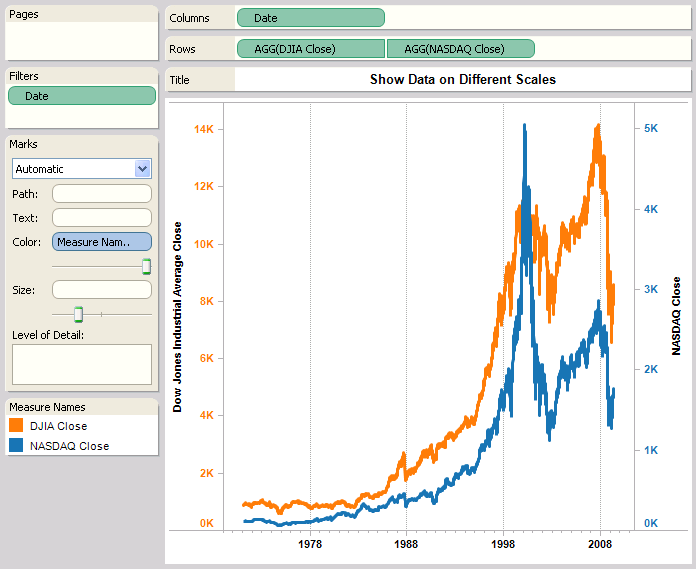
What is Dual Axis.?

You can compare multiple measures using dual axes, which are two independent axes that are layered on top of each other. Dual axes are useful when you have two measures that have different scales.

For example, the view below shows Dow Jones and NASDAQ close values over time.

To add the measure as dual axis drag the field to the right side of the view and drop it when you see a black dashed line. You can also select Dual Axis on the field menu for the measure.


The two axes are independent scales but the marks are layered in the same pane.

Can we use Parameter in Filter.?

Yes, We can use.


Friday, 20 June 2014

What is page self..?

The Pages shelf is a powerful part of Tableau that you can use to control the display of output as well as the printed result of that output. 


Monday, 7 April 2014

How to Improve Performance in Tableau.?

1. Use an extract.
There is nothing else that comes close to the efficiency gained using an extract.  If you don't absolutely need live data, extracting is the best bet.

2. Limit your dashboard to fully answering only one scenario.
At it's simplest, a dashboard should be able to fully explore a single scenario.  If your dashboard has six sheets, five actions, and 3 quick filters, you might not be looking at only one scenario.  Remember, no matter how elegant and comprehensive your solution is, if it doesn't run as quickly as the user would like it to, he or she will not use it.  I would not recommend butchering your dashboard so heavily that it cannot fully handle a scenario.  If the user has to go somewhere else to find the answer, why did they use your dashboard at all?

3. Limit the data being introduced to each worksheet.
If you are not planning on using a set of rows, you should filter them out of the data set as early as possible.  If your table contains all sales, and you only want to look at US sales, create a Custom SQL query that filters it out.  If the filter is worksheet dependent, try using a Context Filter.  For more information on filtering, check out my other post Types of Filters in Tableau.  You can also click the Down Arrow beside the word "Dimension" and Select "Hide All Unused Fields" to hide any fields you are not using in any of your worksheets.  I'm not sure if this improves efficiency; but I'd have to imagine that it does, less data should always improve performance.

4. Remove components that add no value.
While aesthetics are very important to building a usable dashboard, unimportant objects aren't worth losing efficiency over.  In fact, you would be better off adding more functionality than you would by adding a purely aesthetic object.

5. Eliminate any non-essential components from the visualization.
This refers to values that would appear on the Pages, Filters, and Level of Detail Shelves.  If they are purely there for the user to see if they scroll over a point, then they aren't adding any value to the initial glance.  However, I leave this as the last step because it should be a last resort.

In most cases, a little forethought can save you a lot of heartache when you are creating dashboards.  Decide exactly what story you want to tell, and tell only that.  It is much easier to add functionality to a small dashboard, than to butcher a large one.  Thanks for reading.

How many types of filters are there in Tableau.?

In Tableau, there are three types of filters.  More explicitly, there are three different ways to limit the data that is displayed by your graph. Each of these has its own strengths and weaknesses, and we will look at them one at a time.

These types are
  1. Custom SQL "Filters"
  2. Context Filters
  3. Traditional Filters.  
Custom SQL Filters:
Custom SQL "Filter" is a WHERE clause that is placed in the SQL that queries the data to be used in the workbook.  "Filter" is a Tableau term that technically applies only to Context and Traditional Filters; however, the Custom SQL "Filter" emulates the behavior of a global Context Filter, so we will refer to it as such.  By construction, Custom SQL "Filters" are always global.  The most common reason for using a Custom SQL "Filter" is to limit the size of a data extract.  The smaller your data extract, the more quickly your charts will load.  In other words, you can make more complex charts without sacrificing efficiency.

One of the ways to create a Custom SQL "Filter" is during the Server Connection process.

Context Filters:
a Context Filter is a filter in Tableau that affects the data that is transferred to each individual worksheet.  Context Filters are great when you want to limit the data seen by the worksheet.  When a worksheet queries the data source, it creates a temporary, flat table that is uses to compute the chart.  This temporary table includes all values that are not filtered out by either the Custom SQL or the Context Filter.  Just like with Custom SQL "Filters", your goal is to make this temporary table as small as possible.

Context Filters have a few advantages over Traditional Filters.  First, they execute more quickly than Traditional Filters.  They are also executed before Traditional Filters and can be executed all at once, which further improves efficiency.  However, they do have one drawback.  It takes time for the filter to be placed into context.  A rule of thumb, from Tableau's KnowledgeBase, is to only place a filter into context if it reduces the data by at least 10%.

A Context Filter is created by dragging a field onto the "Filters" Shelf and editing the filter.  Then, you can Right-Click the field on the shelf and select "Add to Context."  If you have multiple context filters, you can CTRL-Select them all and add them to context in a batch.  This will improve the efficiency of your filter.

Traditional Filters:
Traditional Filter is exactly what most people think of when they think of filters.  When Tableau is creating the visualization, it will check to see if a value is filtered out by a Traditional Filter.  Since this is not performed at the table level, it is the slowest of all filter types.  However, it does have the advantage of being performed after the Context Filters.  This is a necessity if you are dealing with complex "Top N" filters.  A Traditional Filter can be created by simply dragging a field onto the "Filters" Shelf.

Monday, 17 March 2014

Tableau Interview Questions -FAQs

  1. Is there any new features implemented in tableau 8.0 regarding the tableau server performance improvement?
  2. What are the other settings I need to reconfigure to get better performance as I am using 7.0 tableau server and planning to upgrade to latest versions?Suggest best configurations based on the provided server details?
  3. How many viz SQL process should I run?
  4. How many extracts (extract type) can be used on a single server(without effecting server performance like memory) ?
  5. What are the possible reasons for slow performance in Tableau?
  6. How to check the performance step by step manner(DB, Report side, Network) in tableau report ?
  7. How to improve the tableau report performance?
  8. How we can find the tableau Report Rendering Time.?
  9. What kind of technology is a Tableau Viz?
  10. Is there a limit on storage space for the data?
  11. How do you create dashboard.? Can you explain the life cycle.?
  12. Can you explain about table calculations?
  13. I have one scenario like Year in integer and week in String and wanted to calculate the YTD.. how to do this.?
  14. What kind of join do you see in data blending?
  15. What is data blending..? When do you use this.?
  16. When do you use horizontal and vertical components?
  17. Name the components of dashboard?
  18. Can we have multiple value selection in parameter?
  19. What are parameters and when do you use it?
  20. What is the difference between tableau 7.0 and 8.0 versions?
  21. How Does Tableau Work?
  22. What is Tableau Reader?
  23. What is Tableau Server?
  24. What is Tableau Desktop?
  25. What is the Defference between quick filter and Normal filter.?
  26. What is the Difference between connect live and import all data and Import some data.?
  27. How do I automate reports using Tableau software?
  28. How does Tableau perform with huge datasets?
  29. How is Tableau so fast when working with databases?
  30. How many types of filters are there in Tableau.?

Is there any new features implemented in tableau 8.0 regarding the tableau server performance improvement?

1. Use an extract:
2. Limit your dashboard to fully answering only one scenario:
3. Limit the data being introduced to each worksheet:
4. Remove components that add no value:
5. Eliminate any non-essential components from the visualization